What is WordPress and WordPress maintenance?

Lucrisia

WordPress changed the way we make websites. It is the easiest way to create a website catering to a variety of website types and industries. With the ever-growing number of WP websites, you probably use multiple WP run websites daily without even knowing it. Is your website WordPress? If not, why not? WordPress is a great tool for any business. With a good understanding of the platform and regular maintenance, your business can use the tool to its full capacity.

What is WordPress?

WordPress is an open-source website creation platform that enables users to create, customise and develop a website. It caters to a wide range of websites. From blogs to online portfolios and everything in between. No need to be a developer to use WordPress. Beginners to professional developers use the platform. Beginners can build a website with a good website builder. Yes, without having ever coded a single line in their lives. That is not even the best part of the platform. The best part of WordPress is that it’s free to use.

Code on a screen for WordPress Maintenance

How does WordPress work?

To create a website on the platform, you can choose between the two types of WordPress websites. WordPress.com and WordPress.org.

The main difference between the 2 is:

WordPress.com

When you create a website, WordPress.com will host it. It will appear in your domain name. Example: myblog.wordpress.com.

WordPress.org

You can download the free software and use your server or hosting services. Meaning you need to purchase your domain and hosting/server independently.

Depending on your business or organisational needs, you can choose an option that best suits your needs. There is a wide range of themes and plugins to choose from. These can significantly improve the way you use the platform and the experience your website users have.

Why do WordPress websites need maintenance?

Now that you have a WordPress website, you need to maintain it. There are many reasons why you should keep your website updated. From new features to added security. WordPress core, themes, and plugins such as page builders have regular updates. It is a way of improving their offer to you as the consumer. Having an updated and well-maintained website reduces the risk of being hacked, data leaks, and downtime. Additionally, regularly maintained plugins and themes apply new features and bug fixes frequently. You can upload these to your website and improve the functionality of your website. 

A website that has been maintained with WordPress Maintenance displayed on a laptop sitting on a desk.

Simple and custom websites

Now, if you have a simple website with no custom development, maintenance is easy. You can maintain your website yourself or join a service like our WordPress Maintenance package to free up your time. But, if you have a custom developed website, you need to have an experienced developer working on your website. The risk of updating your website yourself is experiencing errors, but worse is crashing your website. Both these can happen for various reasons. Anything from clashing plugins to plugins not being compatible with your version for WordPress core. Joining a maintenance package provides security and gives you peace of mind. Ensuring your website is always running at its best. Knowing that if anything goes wrong, you have experienced developers working on your website.

What is WordPress Maintenance?

There are many reasons and benefits to keeping your WordPress website updated. These range from regular upkeep to reducing conflicting plugin functionality and custom code. The type and the current state of your website impact what maintenance is required. Regardless of that, some tasks require completion. That ensures your website is always running smoothly and at its best.

WordPress Maintenance definition:​

WordPress maintenance is the regular upkeep of themes, plugins such as page builders and the WordPress core. It strives to reduce plugin conflicts or errors, website downtime and ensure optimal functioning of all website functions.  It also includes preserving any custom work on a plugin or theme and resolving code conflicts with the updated versions.

Our WordPress Maintenance is made up of vital tasks to keep your website running smoothly. We offer three packages; Basic, Intermediate and Advanced. Each of these packages contains one or more of these tasks:

Tasks

Reports – a report on all work completed

Backups – a backup is made every time before any work commences

Update Plugins automatically – some plugins are easier to update depending on the website. However, there is the risk of plugin conflict or plugin errors, and a developer can mitigate this risk.

Update Themes automatically – a theme on a website with no custom development is easier to update. Have a professional developer update your custom theme to give you peace of mind if errors arise.

Remove unwanted Plugins – Plugins become redundant over time, and this happens for various reasons. Plugins that are no longer maintained, infected with malware, no longer compatible with WordPress core or another plugin includes the functionality of multiple plugins. These plugins slow down your website,  cause conflicts with newer plugins and custom builds, cause website downtime or open your website to hackers.

Update WordPress Core – This ensures your base platform is always running at its best with the latest security updates and features from WordPress.org.

Update to the latest PHP version – This ensures you have the most secure and efficient version on which all WordPress functionality runs. We recommend having a developer do this as it might cause errors on your website.

Update Plugins Manually – customised plugins need a developer to preserve the customisation when updating. It applies to plugins that are customised incorrectly or that does not allow for proper customisation.

Update Themes Manually – customised themes that do not use a child theme require a developer to update to preserve the customisation and prevent errors.

A developer coding performing WordPress maintenance

Fix Plugin errors that occur while updating – sometimes things don’t go as planned. For those times, we have this feature in our advanced package.

Fix Theme errors that occur while updating – we aim to keep your website up and running. The best way to do this is to provide the service to fix any theme errors that arise when updating your theme.

These specifically selected services are to ensure your website is always up and running. If you would like to get your own WordPress Maintenance packages click here.


How to remove unwanted plugins

Kurt Wyngaard

If you have ever installed newer plugins with better features replacing an older plugin? Then you need to remove the old plugin. The main reason you should remove the older plugin is the risk of the two plugins conflicting. Nobody wants to deal with errors and crashes. To prevent that from happening we strongly advise you to follow this tutorial on how to remove unwanted plugins.


Webpage banner

How to remove unwanted plugins via the WordPress dashboard

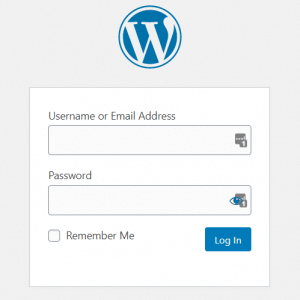
  1. Login to your WordPress site and navigate to the backend. You can type this in your browser if you are not sure how to get to your login screen: www.domain.com/wp-login.php

WordPress login screen

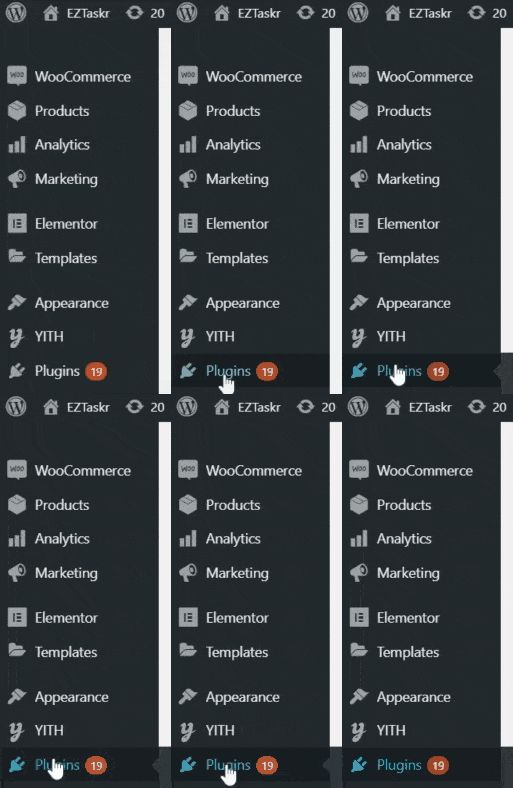
  1. Click on Plugins

WordPress dashboard menu

  1. If you don’t want a plugin anymore, but it is active you first have to Deactivate it by clicking on the button with the same name.

Deactivate a plugin first if it is active

  1. If a plugin is already deactivated you can click on the Delete button.

remove unwanted plugins

Need someone to do this for you?

Get this task done by a WordPress Expert!

Here at EZTaskr you can get tasks like this done for you by buying an affordable month to month credit subscription. Get as many WordPress Maintenance tasks completed as you need for a low monthly price.


Find out more

Call to action

How to install and activate a WordPress plugin

Kurt Wyngaard

One of the best things about a WordPress site is that you can extend it’s functionality by using plugins. Imagine anything and there is probably a plugin that can do it. Of course, this is also a pitfall of WordPress because some plugins are not maintained and others might break your site when updated. If you want a worry free WordPress experience, you can sign up for a month to month subscription with us and let our WordPress experts take care of things like updating your WordPress plugins. If you want to take a go at it here we breakdown how to install and activate a WordPress plugin.


Webpage banner

Installing and Activating a WordPress Plugin

  1. Login to your WordPress site and navigate to the backend.

Install and activate a WordPress plugin login screen

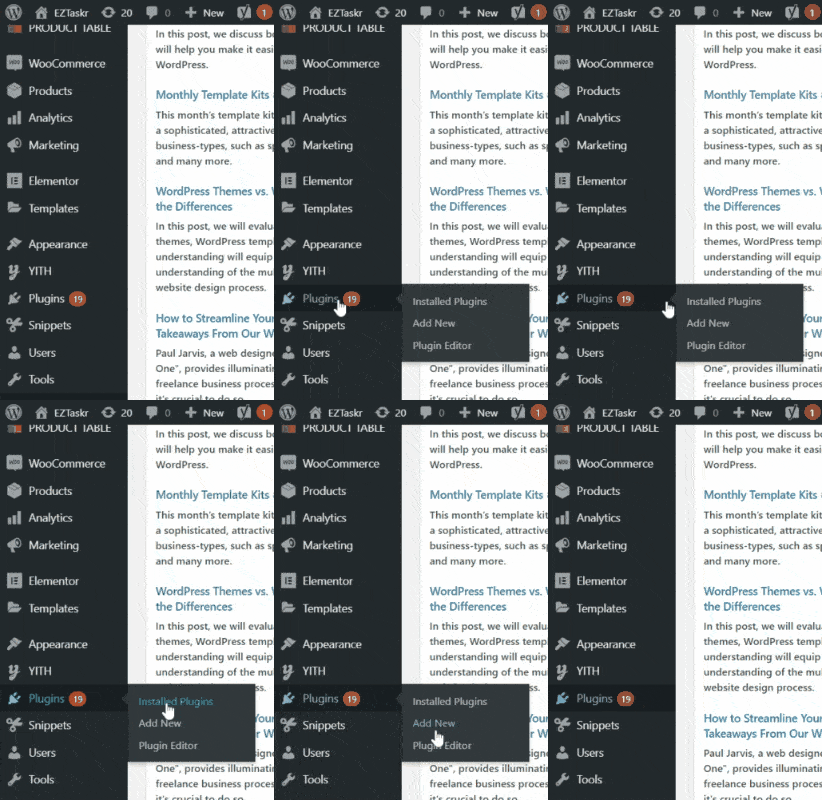
  1. Hover over Plugins and click on Add New.

install and activate a WordPress plugin

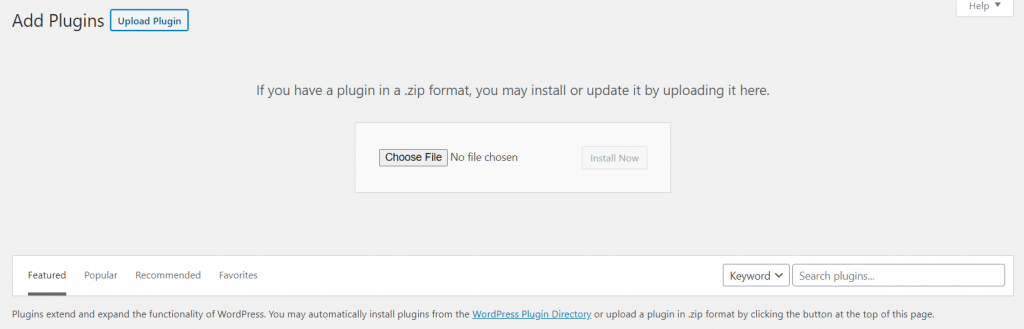
  1. You can use the Search Plugins… field to search for a plugin or you can click the Upload Plugin button if you have a plugin in Zip format

How to add a new plugin

  1.  When searching for a plugin in the WordPress Repository you should consider the recent reviews, which WordPress version the plugin is compatible with and whether support queries are being answered or not.
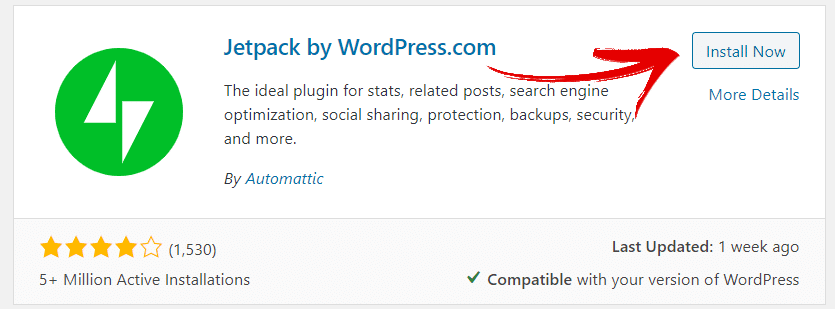
  2. Once you are happy with a plugin you can click the Install Now button.

Click the Install Now button

  1. If the plugin installed successfully you can then click the Active button.

That’s how to install and activate a WordPress plugin. Now we know things don’t always go as planned and when working on a live site a simple update can break something else. That’s why we offer the service of updating your plugins safely to reduce errors and downtime. Saving you time and money.

Need someone to do this for you?

Get this task done by a WordPress Expert!

Here at EZTaskr you can get tasks like this done for you by buying an affordable month to month credit subscription. Get as many WordPress Maintenance tasks completed as you need for a low monthly price.


Find out more

Call to action

Update installed theme using WordPress Dashboard

Kurt Wyngaard

Themes become outdated as time goes by. There are various reasons such as the WordPress Core getting updated and other plugins receiving updates to keep up with WordPress Core or the addition of new features. Over time your theme becomes incompatible with the WordPress Core and maintained plugins. Bugs are also discovered and/or improvements are made to your theme. For this reason you will have to update your theme now and again. Now don’t panic. You have come to the right place to learn how to update theme using WordPress Dashboard.


Webpage banner

Update installed theme via WordPress Dashboard

  1. Login to your WordPress site and navigate to the backend. You can type this in your browser if you are not sure how to get to your login screen: www.domain.com/wp-login.php

Install and activate a WordPress plugin login screen

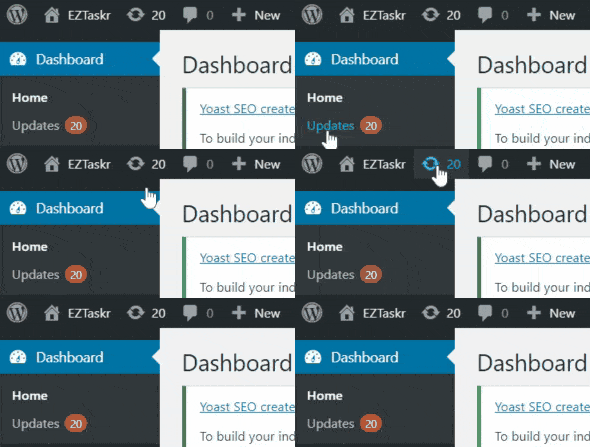
  1. Click on Updates or the update icon.

Update installed theme

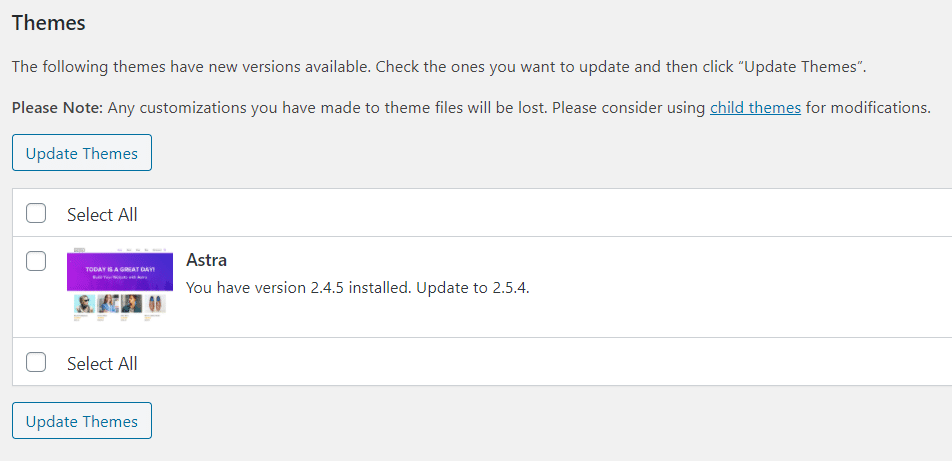
  1. Scroll down to the Themes section. If there are any themes that need to be updated they will be displayed here.

Update theme using WordPress Dashboard

  1. Select the theme you would like to update, then click the Update Themes button.
  2. This can either be a success or not. Once your theme has been updated have a look around your site. If everything looks fine, that’s great, but sometimes you’ll find errors or you might run into the white screen of death. You can read this tutorial on how to troubleshoot the white screen of death or you can get us to help you out.
Need someone to do this for you?

Get this task done by a WordPress Expert!

Here at EZTaskr you can get tasks like this done for you by buying an affordable month to month credit subscription. Get as many WordPress Maintenance tasks completed as you need for a low monthly price.


Find out more

Call to action

How to install and activate a WordPress theme

Kurt Wyngaard

When you install WordPress, the first thing you usually do is choose a theme. You might have a look at the WordPress catalog for a free theme or you might purchase a theme from a third party site. Whatever theme you choose, you still need to install it and activate it. 

Struggling?

We’re here to help. One of our WordPress Experts can do this task for you.


View this task

Install and Activate your WordPress Theme

  1. Login to your WordPress site and navigate to the backend.

WordPress login screen

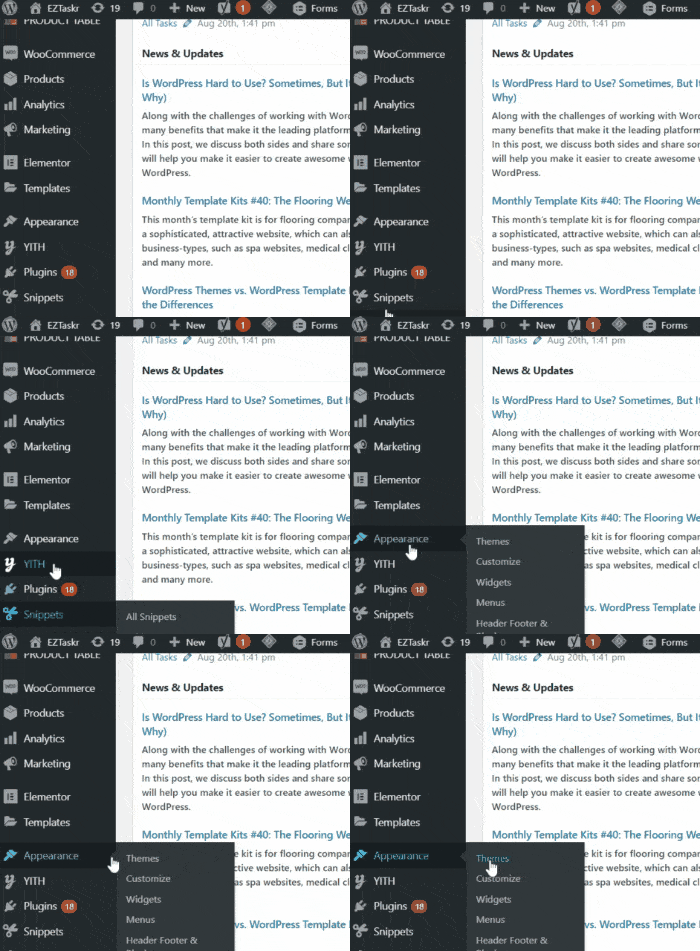
  1. Hover over Appearances and click on Themes in the menu that appears.

  1. Click on the Add New button.

  1. Search for a WordPress theme such as Astra, or click on the Upload Theme button if you have your theme in Zip format.
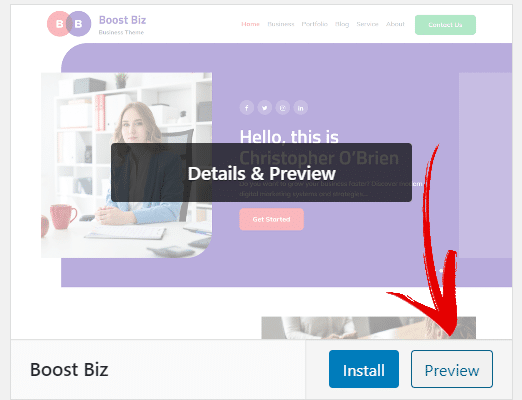
  2. You can Preview your WordPress theme before you install it.

Preview before installing wordpress theme

  1. Once you have selected your theme or uploaded it you can click the Install Now or Install button.
  2. Once your WordPress theme has been installed click the Activate button.
Need someone to do this for you?

Get this task done by a WordPress Expert!

Here at EZTaskr you can get tasks like this done for you by buying an affordable month to month credit subscription. Get as many WordPress Maintenance tasks completed as you need for a low monthly price.


Find out more

Want to read more?

Back to all articles