How to remove unwanted plugins

Kurt Wyngaard
•

If you have ever installed newer plugins with better features replacing an older plugin? Then you need to remove the old plugin. The main reason you should remove the older plugin is the risk of the two plugins conflicting. Nobody wants to deal with errors and crashes. To prevent that from happening we strongly advise you to follow this tutorial on how to remove unwanted plugins.


Webpage banner

How to remove unwanted plugins via the WordPress dashboard

  1. Login to your WordPress site and navigate to the backend. You can type this in your browser if you are not sure how to get to your login screen: www.domain.com/wp-login.php
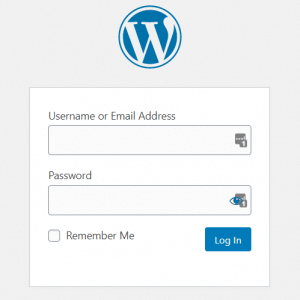
WordPress login screen

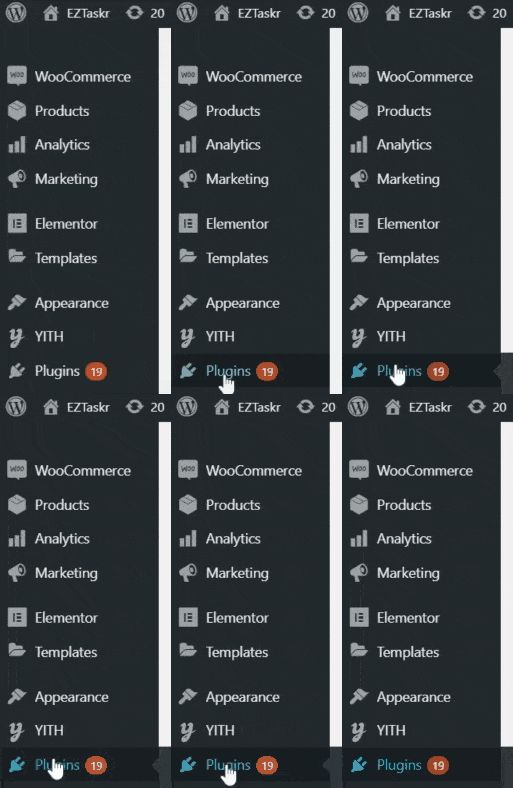
  1. Click on Plugins

WordPress dashboard menu

  1. If you don’t want a plugin anymore, but it is active you first have to Deactivate it by clicking on the button with the same name.

Deactivate a plugin first if it is active

  1. If a plugin is already deactivated you can click on the Delete button.

remove unwanted plugins

Need someone to do this for you?

Get this task done by a WordPress Expert!

Here at EZTaskr you can get tasks like this done for you by buying an affordable month to month credit subscription. Get as many WordPress Maintenance tasks completed as you need for a low monthly price.

Find out more

Call to action

How to install and activate a WordPress plugin

Kurt Wyngaard
•

One of the best things about a WordPress site is that you can extend it’s functionality by using plugins. Imagine anything and there is probably a plugin that can do it. Of course, this is also a pitfall of WordPress because some plugins are not maintained and others might break your site when updated. If you want a worry free WordPress experience, you can sign up for a month to month subscription with us and let our WordPress experts take care of things like updating your WordPress plugins. If you want to take a go at it here we breakdown how to install and activate a WordPress plugin.


Webpage banner

Installing and Activating a WordPress Plugin

  1. Login to your WordPress site and navigate to the backend.

Install and activate a WordPress plugin login screen

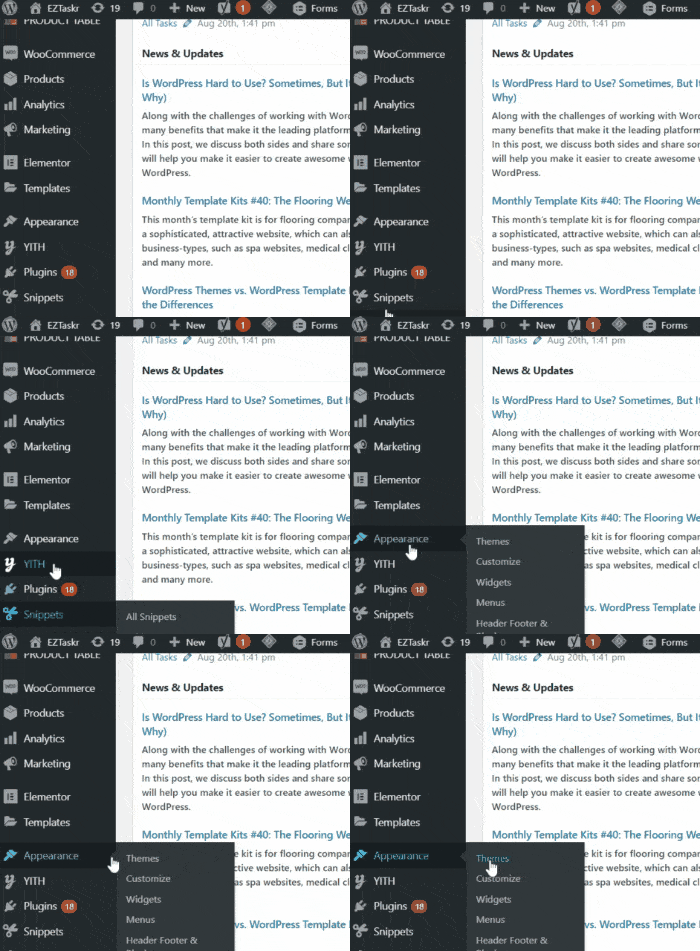
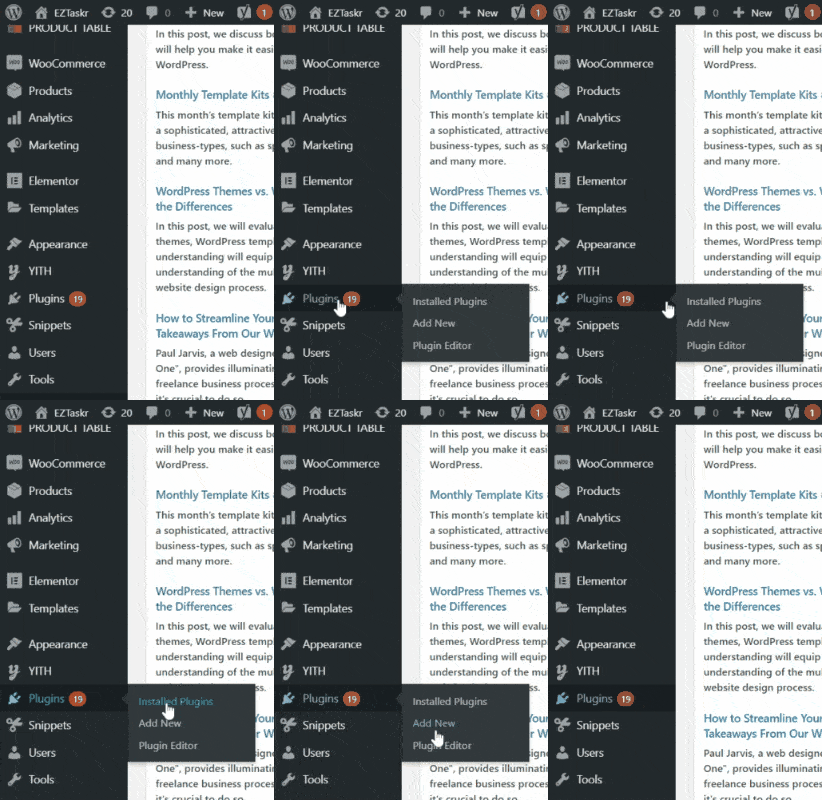
  1. Hover over Plugins and click on Add New.

install and activate a WordPress plugin

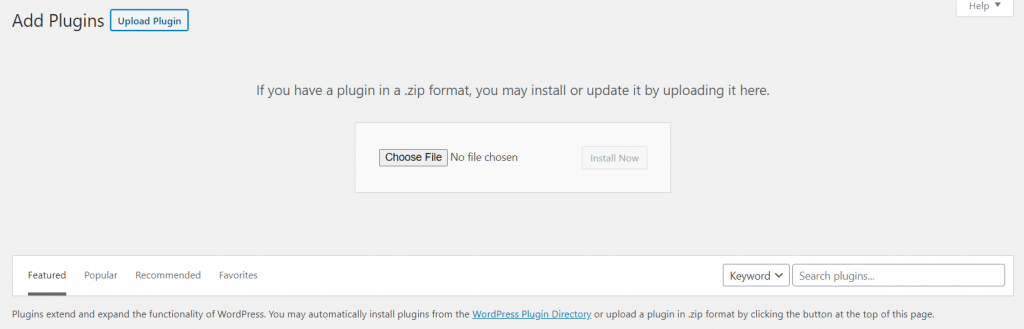
  1. You can use the Search Plugins… field to search for a plugin or you can click the Upload Plugin button if you have a plugin in Zip format

How to add a new plugin

  1.  When searching for a plugin in the WordPress Repository you should consider the recent reviews, which WordPress version the plugin is compatible with and whether support queries are being answered or not.
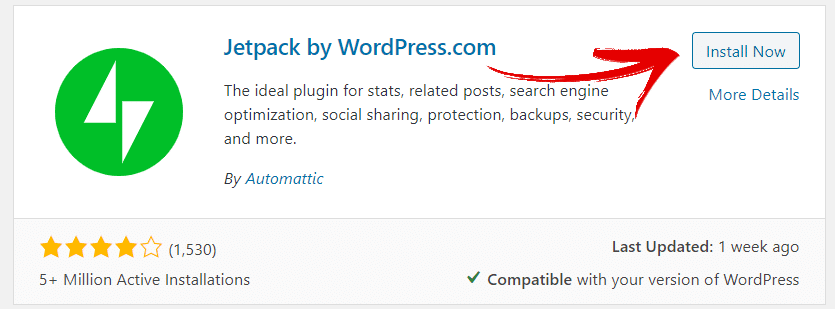
  2. Once you are happy with a plugin you can click the Install Now button.

Click the Install Now button

  1. If the plugin installed successfully you can then click the Active button.

That’s how to install and activate a WordPress plugin. Now we know things don’t always go as planned and when working on a live site a simple update can break something else. That’s why we offer the service of updating your plugins safely to reduce errors and downtime. Saving you time and money.

Need someone to do this for you?

Get this task done by a WordPress Expert!

Here at EZTaskr you can get tasks like this done for you by buying an affordable month to month credit subscription. Get as many WordPress Maintenance tasks completed as you need for a low monthly price.

Find out more

Call to action

Update installed theme using WordPress Dashboard

Kurt Wyngaard
•

Themes become outdated as time goes by. There are various reasons such as the WordPress Core getting updated and other plugins receiving updates to keep up with WordPress Core or the addition of new features. Over time your theme becomes incompatible with the WordPress Core and maintained plugins. Bugs are also discovered and/or improvements are made to your theme. For this reason you will have to update your theme now and again. Now don’t panic. You have come to the right place to learn how to update theme using WordPress Dashboard.


Webpage banner

Update installed theme via WordPress Dashboard

  1. Login to your WordPress site and navigate to the backend. You can type this in your browser if you are not sure how to get to your login screen: www.domain.com/wp-login.php

Install and activate a WordPress plugin login screen

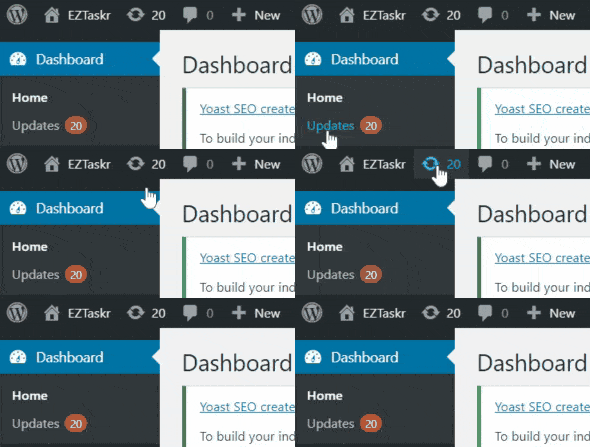
  1. Click on Updates or the update icon.

Update installed theme

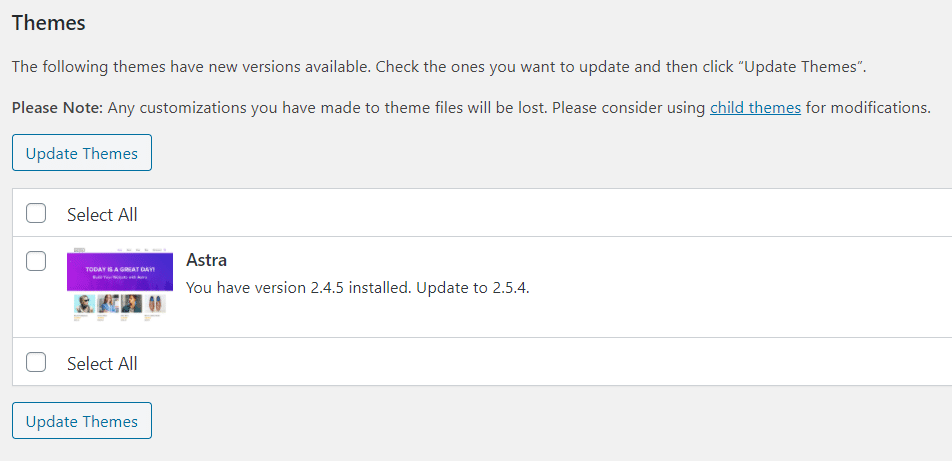
  1. Scroll down to the Themes section. If there are any themes that need to be updated they will be displayed here.

Update theme using WordPress Dashboard

  1. Select the theme you would like to update, then click the Update Themes button.
  2. This can either be a success or not. Once your theme has been updated have a look around your site. If everything looks fine, that’s great, but sometimes you’ll find errors or you might run into the white screen of death. You can read this tutorial on how to troubleshoot the white screen of death or you can get us to help you out.
Need someone to do this for you?

Get this task done by a WordPress Expert!

Here at EZTaskr you can get tasks like this done for you by buying an affordable month to month credit subscription. Get as many WordPress Maintenance tasks completed as you need for a low monthly price.

Find out more

Call to action

How to install and activate a WordPress theme

Kurt Wyngaard
•

When you install WordPress, the first thing you usually do is choose a theme. You might have a look at the WordPress catalog for a free theme or you might purchase a theme from a third party site. Whatever theme you choose, you still need to install it and activate it. 

Struggling?

We’re here to help. One of our WordPress Experts can do this task for you.


View this task

Install and Activate your WordPress Theme

  1. Login to your WordPress site and navigate to the backend.

WordPress login screen

  1. Hover over Appearances and click on Themes in the menu that appears.

  1. Click on the Add New button.

  1. Search for a WordPress theme such as Astra, or click on the Upload Theme button if you have your theme in Zip format.
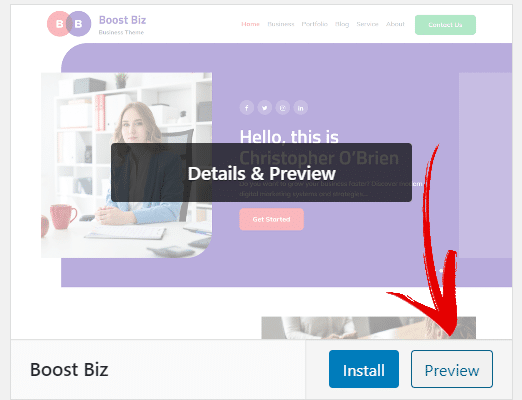
  2. You can Preview your WordPress theme before you install it.

Preview before installing wordpress theme

  1. Once you have selected your theme or uploaded it you can click the Install Now or Install button.
  2. Once your WordPress theme has been installed click the Activate button.
Need someone to do this for you?

Get this task done by a WordPress Expert!

Here at EZTaskr you can get tasks like this done for you by buying an affordable month to month credit subscription. Get as many WordPress Maintenance tasks completed as you need for a low monthly price.

Find out more

Want to read more?

Back to all articles